Voltage Security Network - Quick Start Guide
Protecting information in just a few minutes
Log into your Standard VSN account, purchase licenses, activate your users and install the Voltage software. You and your organization will be protecting information in just a few minutes.
Steps:
(click on a subject to jump to it)- Log into the Account Management Console
- Purchase Licenses (if you haven't already)
- Activate Users
- Download and Install Software
- Support Users
- Delete Users
- Renew Account
Log into the Account Management Console
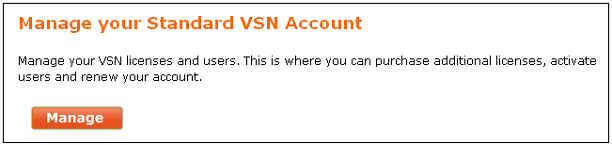
Log in to the VSN Management Console by going to the VSN Login page and click the "Manage" button.
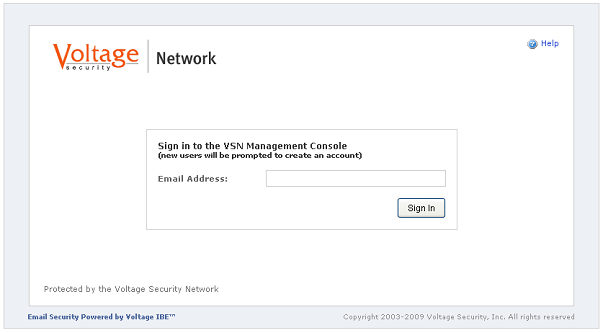
Enter your email address and click "Sign In". You will then be asked for a password. New administrators will be asked to register.
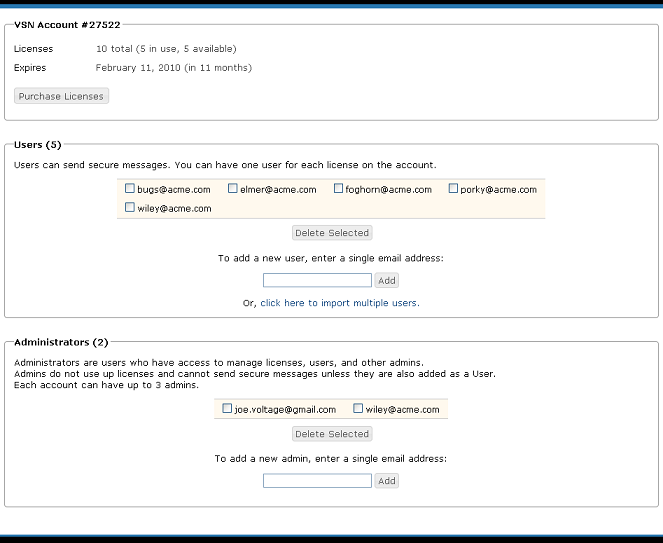
Once logged in, you will see the management console (below). New customers may click on the "Purchase Licenses" button to purchaseone or more licenses. An administrator can also activate or delete users and other administrators, purchase additional licenses or renew your account.
Purchase Licenses
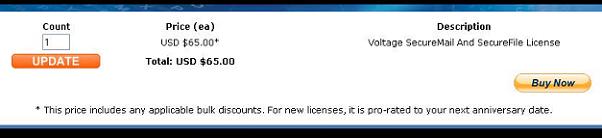
New customers may click the "Purchase Licenses" button on the VSN Management Console. Existing customers may click the "Purchase More Licenses" button. On the next form, choose the number of licenses you wish to purchase and click the "Update" button. The total will be calculated based upon the number of licenses entered. The cost of additional licenses is prorated from the current date to the VSN account anniversary date.
Click to purchase.
Activate Users
1. Assign licenses to users quickly by entering their email address in the email field and click the "Add" button.
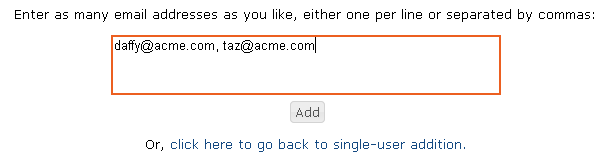
2. To add multiple users, click the "import multiple users" link and the form will change to allow you to enter multiple users. Enter email addresses and click the "Add" button.
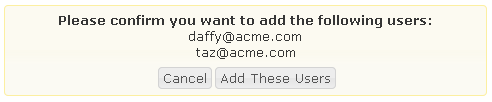
3. Review the list of users and click the "Add These Users" button.
A confirmation message will be displayed and the new users will appear in your user list.

Download and Install Software
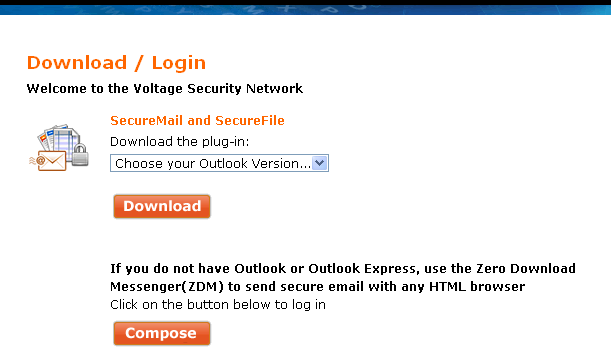
Send your users to the software download page to install the plug-in or they can click the "Compose" button to use the Zero Download Messenger if they do not have MS Outlook.
Support Users
Get your users started with the quickstart guide to show them how to encrypt their email and files and see what secure email looks like to their recipients.
Delete Users
To delete users who are no longer using their license, select the user(s) on the Account user list and click the "Delete Selected" button. You may then re-assign that license to a new user.

Renew Account
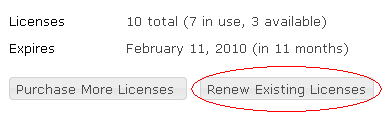
1. Click the "Renew Existing Licenses" button on the Management Console.
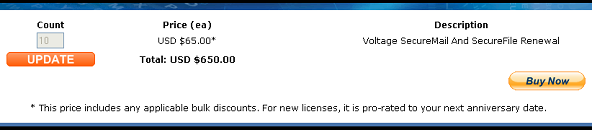
2. The purchase page will be displayed and will calculate the price of the current number of licenses on the account.
3. Click to purchase.
Note: If you want to add licenses during renewal, renew the current licenses and then click "Purchase More Licenses" to purchase the additional licenses.